How to Save Snapchat Photos
TapDownload is a free website that saves public Snapchat Spotlight videos, stories and highlights from their link. It is not affiliated with Snap Inc.
Save your Snapchat photo with the download icon before you send it; it goes to Memories, and can be exported to your camera roll. Public story and highlight photos can be saved at full size with TapDownload. A photo someone sends you can be saved in the chat only if it has no time limit, and the sender sees it.
Three kinds of Snapchat photo, three ways to save
Saving a picture on Snapchat works differently depending on where the picture came from:
| The photo | How to save it | Who is told |
|---|---|---|
| A snap you took | The download icon on the preview, then Export if you want it in your gallery | Nobody |
| A photo in a public story or highlight | Type the @username into TapDownload and tap Save | Not by name (no login) |
| A photo a friend sent you | Save in Chat, only if it was sent with no time limit | The sender sees it |
How do I save a Snapchat photo I took?
When you take a photo snap, Snapchat shows you a preview before you send it. That preview has a download icon at the bottom: an arrow pointing down. Tapping it saves the photo, with any text, drawings, stickers or filters you added.
- On the camera screen, tap the round button once to take a photo.
- Edit it if you like. Everything on the photo is saved with it.
- Tap the download icon at the bottom of the preview.
- Send or post it, or close it. The saved copy stays either way.
If you already sent a photo and didn't save it, there's no button to save it afterwards from the chat you sent it to. If you posted it to your story, you can still save it from My Account while the story is up: open My Story, swipe up on the photo and tap the download icon. The story guide has the full steps.
Where do saved Snapchat photos go?
Saved photos go to Memories, the gallery inside Snapchat. Swipe up from the camera screen to open it. Saved a picture but can't find it in your gallery? That's normal: unless you change the setting, Snapchat keeps saved photos in Memories only.
The setting that decides this is called the Save Button:
- In My Account, tap the gear icon to open Settings.
- Under "App & Privacy", tap My App.
- Under "Customize My App", tap Memories.
- Tap Save Button and choose one of:
- Memories: saved photos stay inside Snapchat only.
- Memories & Camera Roll: a copy in Snapchat and a copy in your phone's gallery.
- Camera Roll: saved photos go only to your phone's gallery.
How to save Snapchat photos to your camera roll
There are two ways, depending on whether the photo is already saved.
For photos already in Memories
- Swipe up from the camera to open Memories.
- Press and hold the photo and tap Export.
- Choose your camera roll, Files, or another app.
For several photos, tap the selector icon at the top of Memories, tap each picture, and use the export options at the bottom of the screen.
How to make your Snapchat photos save to the camera roll automatically
Set the Save Button to Memories & Camera Roll (or Camera Roll). After that, each time you tap the download icon, the picture lands in your phone's gallery automatically.
Saving Snapchat photos on iPhone and Android
"Camera roll" is Snapchat's word for your phone's own gallery. On an iPhone that's the Photos app. On Android it's usually Gallery or Google Photos, depending on the phone. Photos you export from Memories, or save with the camera roll setting, show up there like any other picture.
Photos you save from a public story with TapDownload are downloaded by your browser, so they go where your browser keeps downloads:
- iPhone (Safari): the file goes to the Files app, in the Downloads folder. Open it there and use the share button to save it to Photos.
- Android (Chrome): the file goes to Downloads, and most gallery apps show it straight away.
- Computer: the file goes to your Downloads folder.
The first time you save something, TapDownload shows a short card that points to where your file went on your kind of phone.
How to stop Snapchat from saving to your camera roll
The opposite problem is common too: your gallery fills up with snaps you only meant to keep in Snapchat. To stop it, go to Settings, My App, Memories, Save Button, and choose Memories. Saved snaps then stay inside Snapchat and no longer copy to your phone.
This doesn't remove photos that were already copied. Those are normal files in your gallery now, so delete them there if you don't want them.
Why won't Snapchat let me save to my camera roll?
If you chose a camera roll option and nothing appears in your gallery, the usual cause is your phone's permissions, not Snapchat. Open your phone's Settings, find Snapchat, and make sure it's allowed to access Photos (on iPhone, "Full Access" or at least permission to add photos). Also check that your phone has free storage. If your Memories backup is stuck, connecting to Wi-Fi often helps.
How do you save pictures from Snapchat chats?
Photos a friend sends you are meant to disappear once you've seen them. Snapchat only lets you keep a photo snap if the sender set it to no time limit (the ∞ icon). When that's the case:
- Open the chat.
- Press and hold the photo and tap Save in Chat. In full screen, swipe up and tap Save in Chat.
The photo stays in your conversation as chat media, where your friend can see it was saved. Snapchat's help pages say either of you can delete saved content in a one-to-one chat. If the photo had a timer and you've closed it, it's gone.
How to save pictures from a Snapchat chat to your camera roll
Once a photo is saved in a chat, press and hold it to see the options your app version offers for it. If you want the picture permanently and at its best quality, the most reliable way is to ask your friend to send you the photo file itself, or to share it from their own Memories.
Screenshots are always possible, and Snapchat's privacy page says so: "recipients can always take a screenshot". But a screenshot of a photo snap sends a notice to the sender. That's by design, and we don't share tricks around it. See who sees your views and screenshots for the details.
How to save photos from public stories and highlights
Pictures in public stories and highlights are on snapchat.com for anyone to see, without logging in. That means they can be saved from the web:
- Type the creator's public @username, or paste their profile or highlight link, into the box at the bottom of this page.
- Tap Download. Their story, highlights and Spotlight videos appear in tabs. Use the Photos filter to show pictures only.
- Tap Save on any photo. It downloads as a JPG.
Full size, not the preview
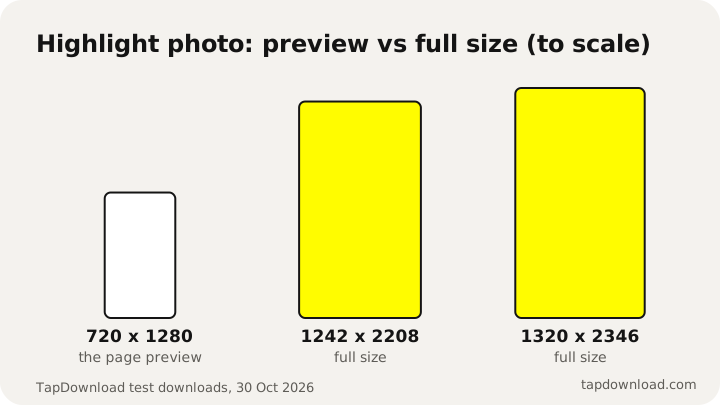
On snapchat.com, highlight photos are shown as a 720 x 1280 copy. Snapchat also keeps a larger one. The full-size highlight photos are usually 1242 x 2208 or 1320 x 2346 pixels, and that is the version TapDownload saves. If a saved photo looks bigger than what you saw on the website, that's why.
JPG, PNG or WEBP
The sliders button next to Save lets you change the format, made in your browser: JPG is the original and the right choice for most people; PNG is lossless and larger, useful for editing; WEBP is smaller, good for websites. You can also pick a smaller size if you only need a preview.
How to download all photos from Snapchat
Your own photos come out in one go with Snapchat's free My Data export; public story and highlight photos save as ZIPs of up to 25 with TapDownload; photos friends sent you have no bulk option.
- All your own photos: use Snapchat's My Data export. At accounts.snapchat.com (or Settings, My Data in the app), turn on Export your Memories, tap Request Only Memories, and submit. Snapchat emails you a link to a zip file; open its index.html on a computer and download everything from the Memories page. Our Memories guide has every step.
- All the photos in a public story or highlight: in TapDownload, tap Download several, choose All photos (or the Story or Highlights group), review the list, and save them as a ZIP. Each ZIP holds up to 25 files.
- All the photos a friend sent you: there's no bulk option, and timed photos can't be saved at all. Ask your friend for the originals.
Do saved Snapchat photos lose quality?
Your own photos keep the quality Snapchat's camera captured when you save them before sending. Photos you download from public stories are the files Snapchat serves to the web, which are compressed but, for highlights, full size. Nothing on our side shrinks them, and we don't upscale them either: a bigger number on an upscaled file would only add invented detail.
If you're saving for printing or editing, your own original photo from the camera roll is always the best source. For someone else's photo, the creator's original is better than any download, so ask them.
Sources
- Snapchat Support: How do I save a Snap to Memories and Camera Roll?
- Snapchat Support: How do I save a Snap or Story to Memories?
- Snapchat Support: How do I download a Snap from Memories?
- Snapchat Support: How to Save a Snap or Friend's Story in Chat
- Snapchat Support: How do I download my data from Snapchat?
- Snap Privacy Center: Privacy by Product
- TapDownload test files, 29 and 30 October 2026