How to Save Twitter Images in Full Size
TapDownload is a free website that saves public Snapchat, TikTok and X videos and photos from their link. It is not affiliated with Snap Inc., TikTok or X Corp.
To save Twitter images in full size, copy the post's link, paste it into TapDownload and save the photos. TapDownload saves the original copy X keeps, not the smaller one your timeline shows. A post can hold up to four photos; save them one by one, or tap Download several to get them all in one ZIP.
Why does X show smaller copies of photos?
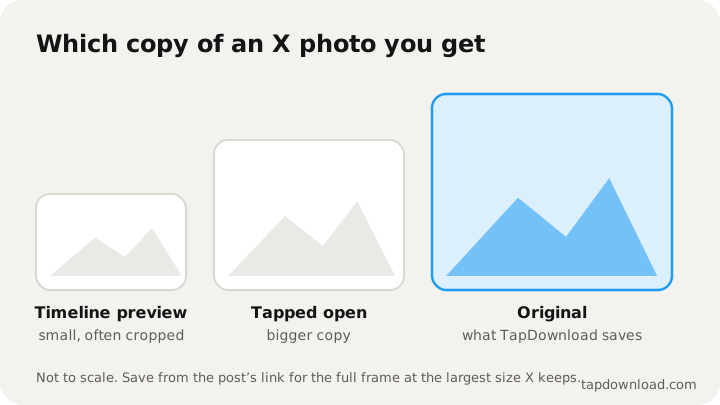
When someone posts a photo on X, X stores it once and serves it in several sizes. Your timeline gets a small copy, because it loads fast and looks fine at that size. Tapping a photo shows a bigger one. The largest copy X keeps, the "original", is what was uploaded after X's own processing, and it's the one you want if you'll print, crop, zoom or edit the picture.
That's why a screenshot or a quick "save image" from the timeline often gives you a blurry or cropped picture: you're saving whatever size happened to be on screen. Timeline previews are also often cropped to fit the layout, so part of the photo may be missing.
| How you save it | What you get |
|---|---|
| Screenshot of the timeline | Your screen's pixels, often cropped, with buttons around it |
| Save from the X app | A large copy, saved to your gallery |
| Right-click in a browser | Whatever size the page loaded |
| TapDownload, from the link | The original copy X keeps, for every photo in the post |
How do I download Twitter images in full size and high quality?
- Copy the post's link. In the X app, tap the Share icon under the post, then Copy link. On a computer, open the post and copy the address from the browser bar. x.com and twitter.com links both work.
- Paste it into TapDownload. Open the X (Twitter) downloader. Opening the Photos tab first is fine but not needed: TapDownload sees what the post holds.
- Save the photos. Each photo is listed in the order of the post. Tap Save under one to get its original. Tap a photo first to see it bigger; the arrows move through the post.
That's how to download a Twitter image at its original size: the sliders button shows the Twitter original image size (width and height) before you save. The picture is saved exactly as X stores it, usually as a JPG. Nothing is resized, cropped or compressed again.
Can I save all four photos in a post at once?
A post on X can hold up to four photos, or a mix of photos and videos. To save them all in one go:
- Paste the post's link as above.
- Tap Download several, then choose Everything (or All photos if the post mixes photos and videos).
- Tap Download ZIP. You get one ZIP file with every picture, numbered in the order of the post, with the poster's username in the file names.
On a Windows PC, right-click the ZIP and choose Extract All. On a Mac, double-click it. On an iPhone, tap it in the Files app and it opens into a folder. On Android, tap it in your Files app to extract it.
How do I save Twitter images as PNG or JPG?
If you need a different format, tap the sliders button next to Save on a photo. You can save it as PNG, or as WEBP where your browser supports it, at the original size or at 1080 or 720 pixels wide. The conversion happens inside your browser; nothing is uploaded.
- JPG (the default) is the original. Keep it unless something asks for another format.
- PNG is useful for tools that want PNG, such as some design apps. It doesn't add quality to a JPG, it just stores the same pixels without further loss, in a bigger file.
- WEBP makes smaller files for websites.
- 1080 or 720 wide is handy for sharing in chats or slides when you don't need the full size.
How do I download Twitter images on PC?
On a Windows PC, a Mac or a Chromebook, open the post on x.com, copy the address from the bar at the top, and paste it into TapDownload. Save one photo or the whole post as a ZIP; everything goes to your Downloads folder. This is the easiest way to get pictures into a design app, a document or a print shop's upload form, and it's how TapDownload works as a Twitter image downloader without any add-on.
How do I save the photos from a thread?
Every post in a thread has its own link, and each link holds only that post's photos. To download Twitter photos from a whole thread, copy the link of each post that has pictures and paste them one after another. The file names include the poster's username and a number, so photos from one thread stay together in your Downloads.
Can I save photos inside the X app?
The X app can save a photo to your phone too. Open the photo so it fills the screen, then press and hold it, or tap the menu in the corner, and choose the save option. The app saves a large copy to your gallery. It's quick for one picture you're looking at; the link route is better when you want every photo in a post, the original copy, a different format, or to save from a computer.
Where do saved photos go on iPhone and Android?
- iPhone: in TapDownload's preview, press and hold a photo and tap Save to Photos to put it straight in your camera roll. If you tap Save instead, Safari puts the JPG (or the ZIP) in the Files app, in Downloads; open it and use Share, then Save Image.
- Android: saved photos land in Downloads, and Google Photos or your gallery app shows them there.
- Computers: the Downloads folder.
Saving videos from X works the same way; see how to download videos from X and how to save Twitter videos on iPhone.
Why won't a Twitter image save in full size?
- The account is protected. Protected posts are only shown to approved followers, so no website can open them.
- X hides the post from logged-out visitors, which happens with some sensitive or age-restricted posts.
- The post was deleted. The photos go with it.
- The picture isn't a photo in the post. A link preview card (the box that appears when someone shares a web page) shows the other site's image; save it from that site. A profile picture or header isn't part of a post either.
- It was posted small. X can't keep more than it was given: a small upload stays small at every size.
How do I save photos from replies and quote posts?
A photo belongs to the post it was uploaded with. In a reply, copy the reply's link; in a quote post, open the quoted post and copy its link, because the quote usually holds only text. A repost points at the original, so its link works too. If TapDownload says a post has no photos, you've most likely copied the post around the photo rather than the post with the photo.
Is an X photo big enough to print?
Check the width in the save options, then divide by 300: that's roughly how many inches wide it prints sharply. A photo 1,200 pixels wide prints well at about 4 inches (10 cm); at 2,400 pixels, about 8 inches (20 cm). Larger prints still work from a distance, like posters, but get softer up close. Prints of someone else's photo need their permission, especially if you'll sell or display them.
What about profile pictures and header images?
Profile pictures and header images belong to an account, not to a post, so a post's link doesn't contain them. TapDownload saves the photos inside posts. If you need an account's profile picture, ask the person: it's usually easiest for them to send you the original.
Do saved photos keep the image description?
Posters on X can add a description of up to 1,000 characters to each photo for people who use screen readers, shown as an ALT badge on the picture. The saved file doesn't carry it, because descriptions are stored with the post, not in the image. If you share a saved photo, copy the description from the post and add it again where you post it; it keeps the picture usable for blind and low-vision readers.
Can I reuse photos from X?
A photo belongs to whoever took or made it. Saving one to look at later, or to keep your own pictures, is ordinary personal use. Reposting someone's photo, putting it in your own work or selling it is different: ask first, and credit them with their @username. Artists in particular rely on being credited, because their work is often shared without their name. TapDownload isn't affiliated with X Corp, and it only reads what X shows to anyone who opens the public link (about TapDownload). Pictures from TikTok work the same way: how to download TikTok photos.
How do I get the sharpest copy?
- Use the post's own link, not a link to a quote or a reply. The photo lives in the original post.
- Don't screenshot. A screenshot is limited to your screen and adds its own compression.
- Check the size before you save. The sliders button shows the original's width and height, so you know what you're getting.
- Keep the JPG. Converting to another format never adds detail that wasn't there.
- Look at the whole picture. Timeline previews crop tall and wide photos to fit the layout. The saved original shows the full frame, so check it before you decide a photo is cut off.
- Rename as you go. If you save many photos for a project, keep TapDownload's names (they start with the poster's username) or add your own note, so you always know whom to credit.
- Save soon. Posts get deleted. If a photo matters to you, save it while the post is up, because a deleted post's photos can't be recovered from X.